


Caption bar
Remove a caption bar from a talk
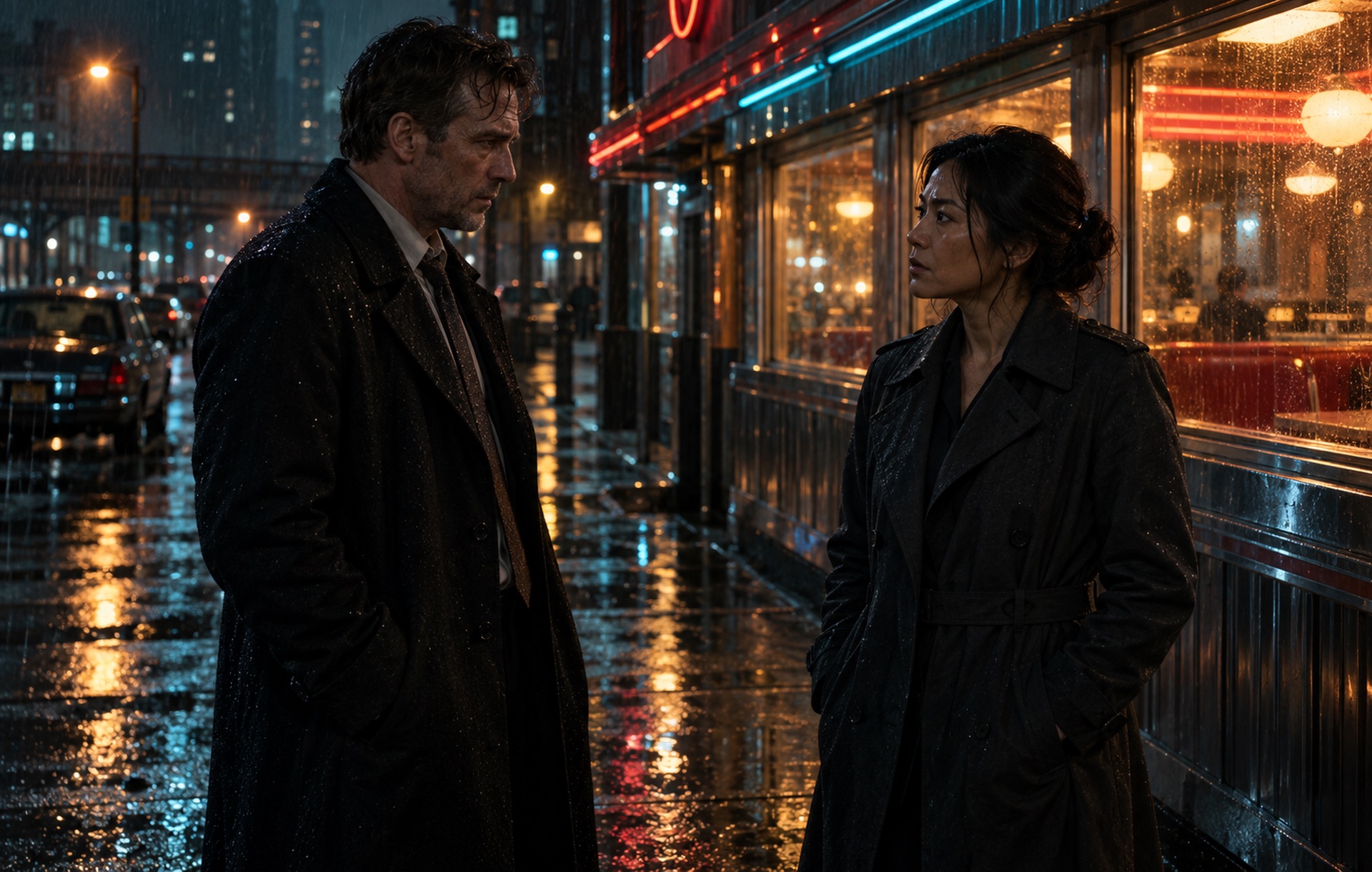
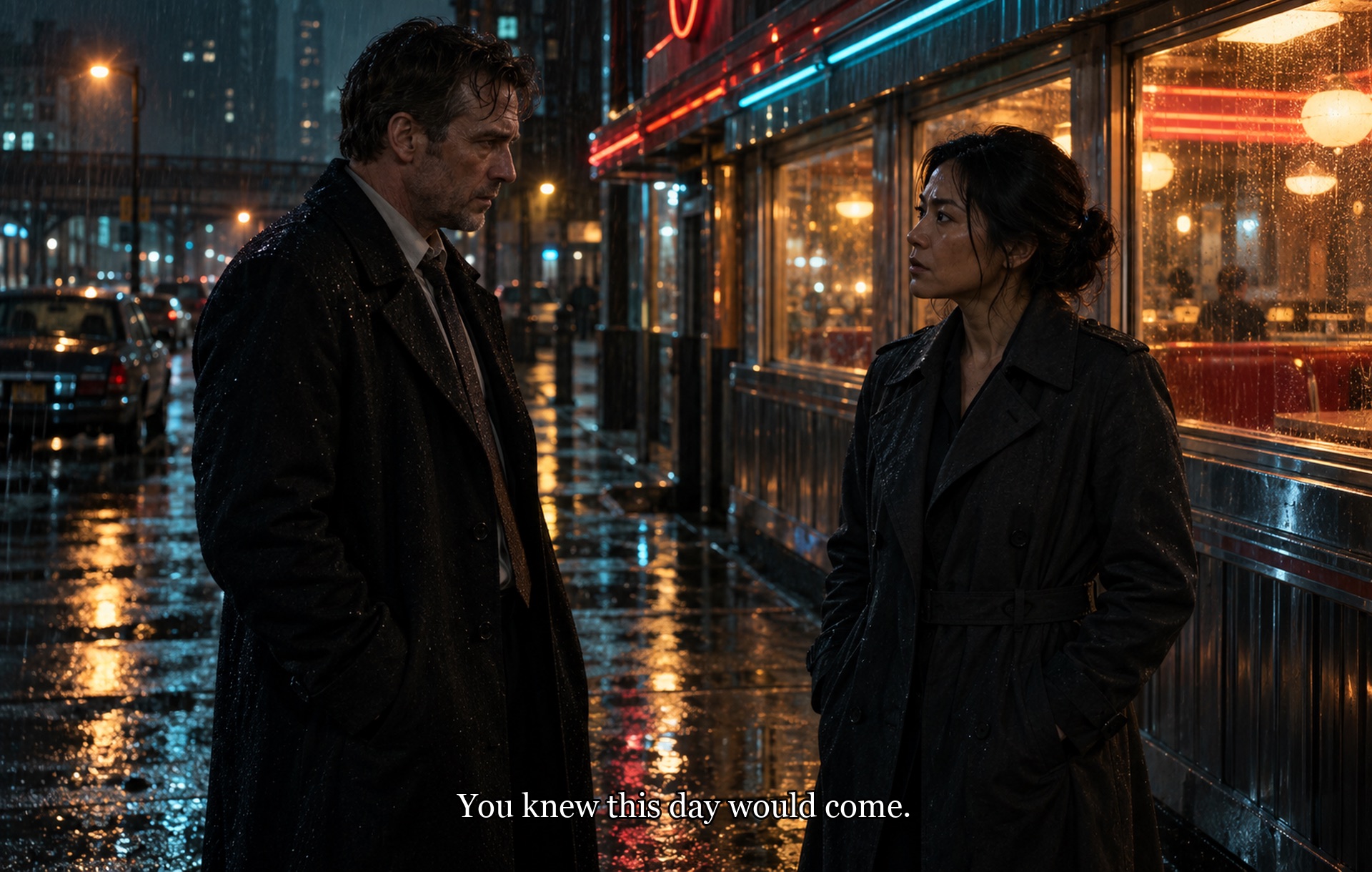
A dark bar with a key takeaway sits at the bottom of a presentation. The slides and the speaker are the part to keep.
Free preview · Up to 2 trial runs per account
Preparing another language version but only have the exported clip? Remove burned-in subtitles from your own short tutorials or social videos, then add translated subtitles in your editor.
Drop a video here or choose a file
The video plays in your browser. It is uploaded only when you press the remove button.
Choose a clip and set up the removal. Your video is uploaded only when you press the remove button.
More examples
Subtitles are one kind of text on a frame. These samples show a caption bar, a sticker title and a lower third.
A dark bar with a key takeaway sits at the bottom of a presentation. The slides and the speaker are the part to keep.


A pink sticker title sits over the top corner of a kitchen clip. Removing it gives the clean clip back for a new edit.


A small text card sits at the lower right of a skincare clip. The face and the product stay as they are.
These sample images show typical before and after looks. They were not made with this site.
A video subtitle remover is made to take burned-in subtitles out of a clip and rebuild the picture behind them. Burned-in subtitles are part of the picture, so you box their area. The rest of the frame is meant to stay as shot.
Video Subtitle Remover takes burned-in subtitles out of a video: you mark where the text sits and the picture behind it is rebuilt. It is for subtitles that are part of the picture, not for a subtitle track you can switch off.
Try the CC or subtitle button first. If the text goes away, it was a separate track and you can switch it off or delete the track. If the text stays on screen, it is burned into the picture, and only then do you need a tool like this. The hardcoded subtitle guide shows how to tell.
Use this page for lines that follow what people are saying. Use the caption page for text bars that label or explain a scene, such as a key takeaway. If you are not sure, start here; the marking works the same way.
Compared
Subtitles that are a separate track can be switched off. Subtitles burned into the picture cannot, so you have a few choices and each has a cost.
| Way to do it | What happens | Watch out for |
|---|---|---|
| Turn off the subtitle track | Works only for soft subtitles, which are a separate track in the file. The picture is untouched. | If the text stays after you switch it off, it is burned in and this does not help. |
| Crop the frame | Cuts the strip with the text off the video. | You lose that part of the picture, and the new shape may not fit your platform. |
| Cover with a bar or blur | Hides the text behind a solid box or a blur. | The cover is easy to see, and a blur can still show the shape of the letters. |
| Export again from the source project | Exports the edit again without the subtitle layer. | Needs the original project files, which you often do not have. |
| Rebuild the picture (this site's tool) | You mark where the text is and the picture behind it is filled in. | Busy backgrounds and outlined text are harder, so check the result. |
Turn off the subtitle track
What happens: Works only for soft subtitles, which are a separate track in the file. The picture is untouched.
Watch out for: If the text stays after you switch it off, it is burned in and this does not help.
Crop the frame
What happens: Cuts the strip with the text off the video.
Watch out for: You lose that part of the picture, and the new shape may not fit your platform.
Cover with a bar or blur
What happens: Hides the text behind a solid box or a blur.
Watch out for: The cover is easy to see, and a blur can still show the shape of the letters.
Export again from the source project
What happens: Exports the edit again without the subtitle layer.
Watch out for: Needs the original project files, which you often do not have.
Rebuild the picture (this site's tool)
What happens: You mark where the text is and the picture behind it is filled in.
Watch out for: Busy backgrounds and outlined text are harder, so check the result.
For editors and trainers reusing short footage when the original subtitle layer is unavailable. This tool clears the old words; translation, timing and new subtitle styling happen in your editor.
Choose a videoClear a burned-in dialogue band from your own TikTok or Reels source file before adding the translated track.
Keep the useful demonstration and remove outdated subtitles. Choose a segment up to 60 seconds and 50 MB, then add the revised text separately.
Work from an authorized client export when the source project is gone. If the project still has editable subtitles, change that layer first.
How to use it
Choose a clip, set up the removal and check the processed result before downloading. Time ranges are applied in your browser; processing is still charged for the full uploaded clip.
Choose a clip for free, with no login needed. It plays on your device while you mark it; processing is a separate step.
Draw a box around the subtitles, or start from a preset. Include any outline or shadow.
Review the credit estimate before submitting. After processing, check the full result and download the version you want to keep.
Quality guide
Results depend on subtitle size, background detail and motion. Play the whole clip before you use it. The quality guide explains what affects the result.
A good place to start.
Plan to check these more closely.
Look closely at these spots.
More tools
Each tool has its own page. Open the one that matches what you want to remove.
Remove text from videoTake titles, subtitles and timestamps out of a clip. Remove captions from videoClear captions added on top of a short video.
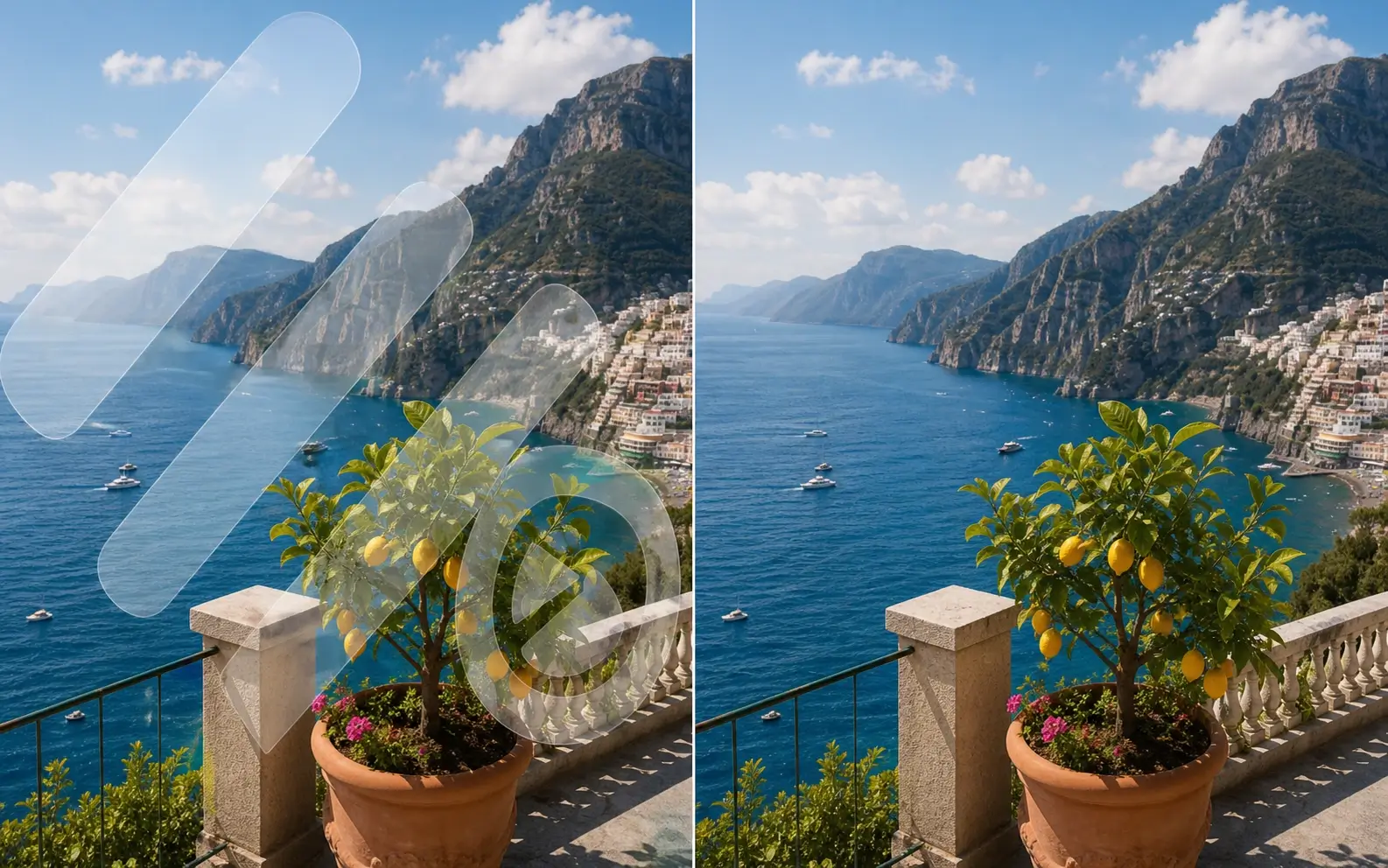 Remove watermark from videoTake a watermark you are allowed to remove out of a clip.
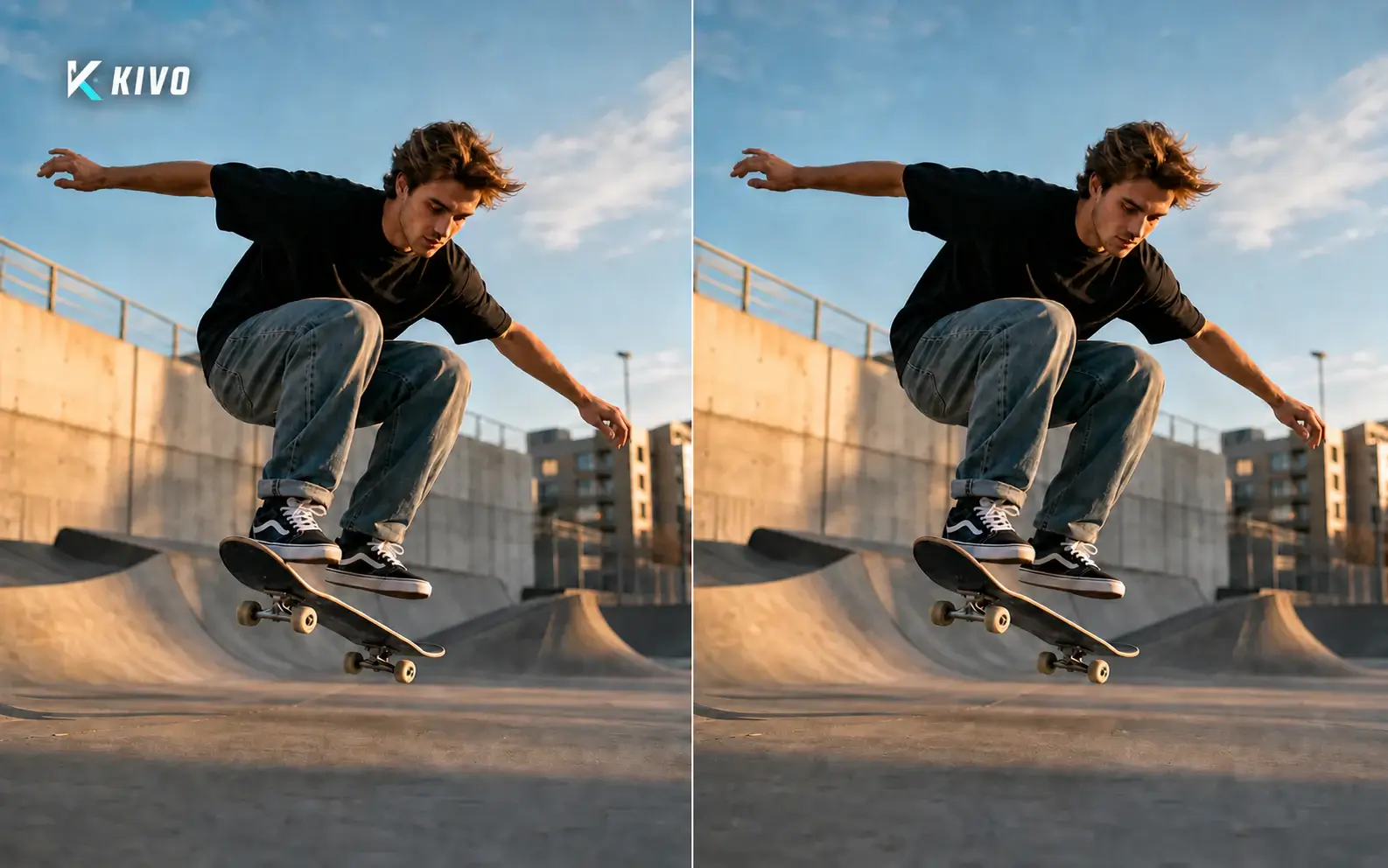 Remove logo from videoTake fixed logos, channel badges and watermarks out of a clip.
FAQ
Choose a clip, box the subtitle area and press the remove button. The clip is processed and you can check the result before you download it.
Hard subtitles are burned into the picture, so you mark their area. Soft subtitles are a separate track, such as SRT or VTT, and can be switched off or deleted in a player or editor.
Place a box around only the line you want removed. Up to three boxes can have separate time ranges. Closely spaced lines may still affect one another, so check the result.
Use up to three fixed boxes with separate time ranges when subtitles change position. A box does not follow continuously moving text; check each transition and the full result.
Choosing and previewing a clip is free. Each account can use up to two trial runs, each for a clip of up to 15 seconds, shared across the server-processed video removal tools, subject to human verification and device, network and site limits. Paid runs use credits; review the estimate before submitting.
No install is needed. You mark the area in your browser, and you sign in to process a clip so the task and any credit charge stay in your account.
Your video stays on your device during preview. It is uploaded only when you submit a removal task.
Only edit videos you own or have permission to change.
Only edit videos you own or have permission to change.
Choose your exported short video and mark the old subtitle band. After removal, add the replacement subtitles in your editor.
Choose a video