


Free preview · Up to 2 trial runs per account

Video Caption Remover: Remove Captions from Video Online

A product clip still works, but its hook or offer is out of date? Clear burned-in captions from your own TikTok, Reels or CapCut export, then add a new message or caption style in your editor.

Drop a video here or choose a file

The video plays in your browser. It is uploaded only when you press the remove button.

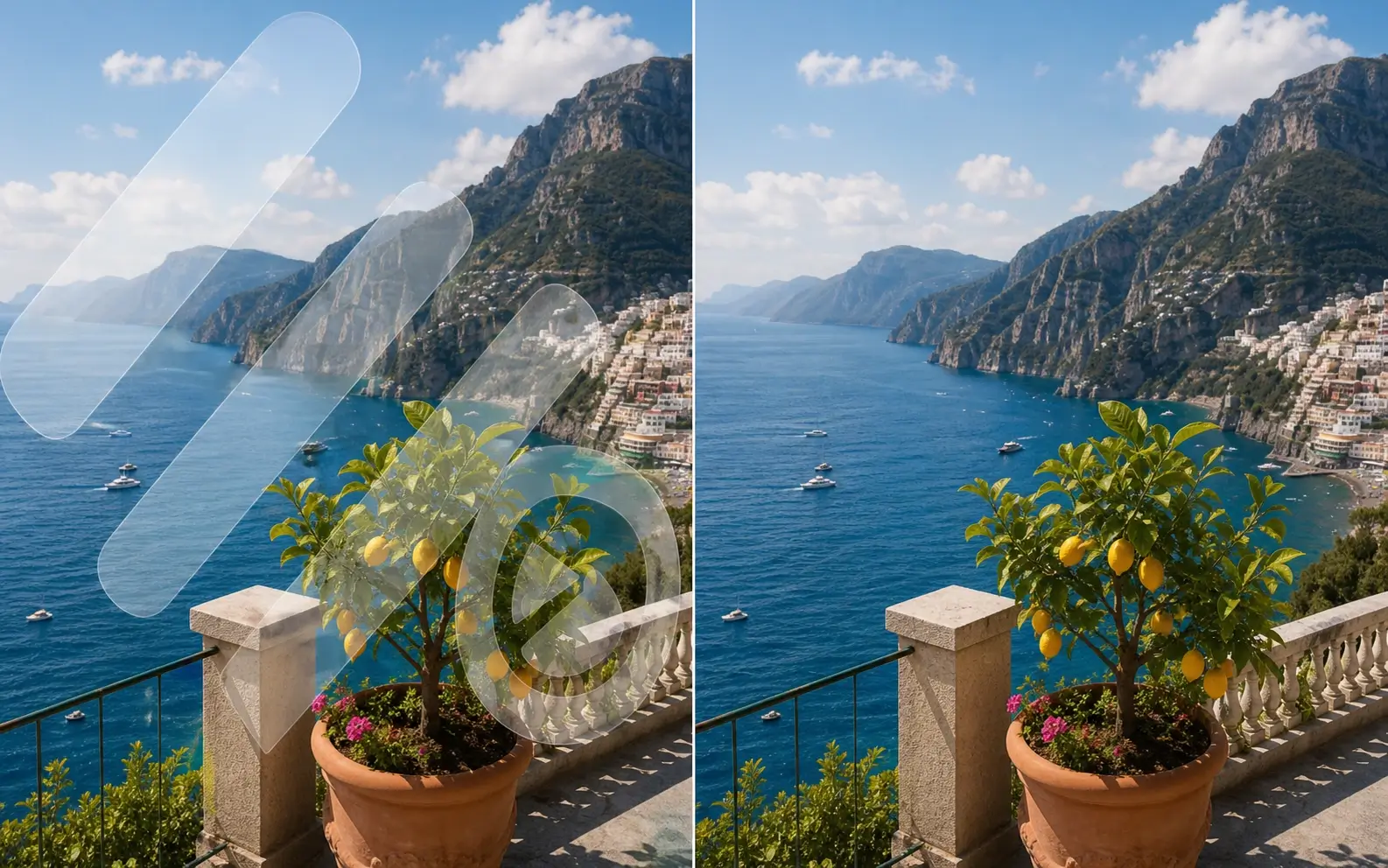
The same scene without the caption barTraining video with a caption bar and a label chipBeforeAfter
These sample images show typical before and after looks. They were not made with this site.

Choose a clip and set up the removal. Your video is uploaded only when you press the remove button.

What it does

What a video caption remover does

A video caption remover is made for captions that were added on top of a clip, such as the words on short social videos. You box where the captions sit. The rest of the frame is meant to stay as shot.

  • Box the caption area, wherever it sits
  • Up to three fixed areas, each with its own time range
  • Play the whole clip before you use it
Try it on your clip
Training frame with a dashed box drawn around the caption bar
Before you start

Video Caption Remover: facts and quick answers

Video Caption Remover takes burned-in captions and text bars out of a video by rebuilding the picture behind them. It is for text that is part of the picture, such as a key takeaway bar, not for closed captions you can switch off. For TikTok clips, see the TikTok text guide.

Works on
Text bars and labels that explain or title a scene, such as a key takeaway or a name tag.
Works best when
The bar has a solid color and a clear edge, and the picture behind it is simple.
Harder when
The bar is see-through, animated, or covers a face or a product.
Not the right tool when
The captions are a separate track that your player can switch off.
Today
Choose a clip, set up the removal and submit it for processing. Your video is uploaded only when you press the remove button.
Cost
Up to two trial runs per account, each for a clip of up to 15 seconds, shared across the server-processed video removal tools and subject to usage limits. Paid runs use credits; review the estimate before submitting.
Last checked
2026-10-24

Quick answers

What is the difference between captions and subtitles here?

On this site, subtitles follow speech and captions label or explain a scene. Both use the same removal method. Choosing a page is free; processing uses the trial or credit cost shown before submission.
My video has a CC button. Do I need this?

Probably not. A CC button means the captions are a separate track you can switch off. You only need to remove them from the picture when the text is still visible with CC turned off. Not sure which kind you have? Read the hardcoded subtitle guide.

Compared

Captions, subtitles and CC: what is what

The words overlap, but they are not the same thing. The difference decides whether you need a removal tool at all.

  • Subtitles

    What it is: Lines of dialogue, often in another language, shown near the bottom.

    Do you need a remover?: Soft ones can be switched off. Burned-in ones cannot, and those need a remover.

  • Closed captions (CC)

    What it is: Dialogue plus sounds such as [music], sent as a track a viewer can turn on or off.

    Do you need a remover?: No. It is not part of the picture.

  • Open captions

    What it is: Captions burned into the picture so that everyone sees them.

    Do you need a remover?: Yes. It is part of the picture, which is what a caption remover is for.

  • On-screen text bars

    What it is: Labels added in the edit, such as a key takeaway, a name or a title.

    Do you need a remover?: Yes, if you want them gone. Mark the bar the same way.

  • Transparent or animated bars

    What it is: Bars that fade, slide or let the picture show through.

    Do you need a remover?: Harder cases. Check the whole clip after processing.

People and use cases

Refresh Captions for Your Next Post or Campaign

For creators and content teams who want another version of footage they already own. Use the exported file when its caption layer is no longer editable, then build the new captions separately.

Choose a video
  • Creators: try a different opening hook

    Clear the old TikTok opening line before adding a new hook. Check changes in caption size and position across the whole clip.

  • Ecommerce teams: update an offer

    Remove an expired price or date from your product Reel, then add the current promotion without rebuilding the whole edit.

  • Editors: change a caption style

    When only a CapCut export remains, remove its old captions before styling new ones in your editor. Edit the original layer if it is available.

How to use it

How to use the video caption remover

Choose a clip, set up the removal and check the processed result before downloading. Time ranges are applied in your browser; processing is still charged for the full uploaded clip.

Choose a video

  1. Choose your video

    Choose a clip for free, with no login needed. It plays on your device while you mark it; processing is a separate step.

  2. Box the captions

    Mark the old caption areas with up to three boxes and give each a time range. Keep the boxes close to the text and check every change in position or size.

  3. Process and check

    Review the credit estimate before submitting. After processing, check the full result and download the version you want to keep.

Quality guide

What to Expect from a Video Caption Remover

Results depend on caption size, background detail and motion. Play the whole clip before you use it. The quality guide explains what affects the result.

Easier cases

A good place to start.

  • Captions in one fixed spot
  • Plain, single-color words
  • A calm background

Harder cases

Plan to check these more closely.

  • Captions that jump between places
  • Words that light up one by one
  • Stickers and text over faces

Before you use the result

Look closely at these spots.

  • Where the captions used to be
  • The edges of your box
  • The whole clip, start to end

FAQ

Video Caption Remover FAQ

Only edit videos you own or have permission to change.

Make Room for Your Next Message

Choose your short clip and mark its old captions. Add the new hook, offer or caption style in your editor after removal.

Choose a video