
Passer-by
Remove a passer-by from a travel shot
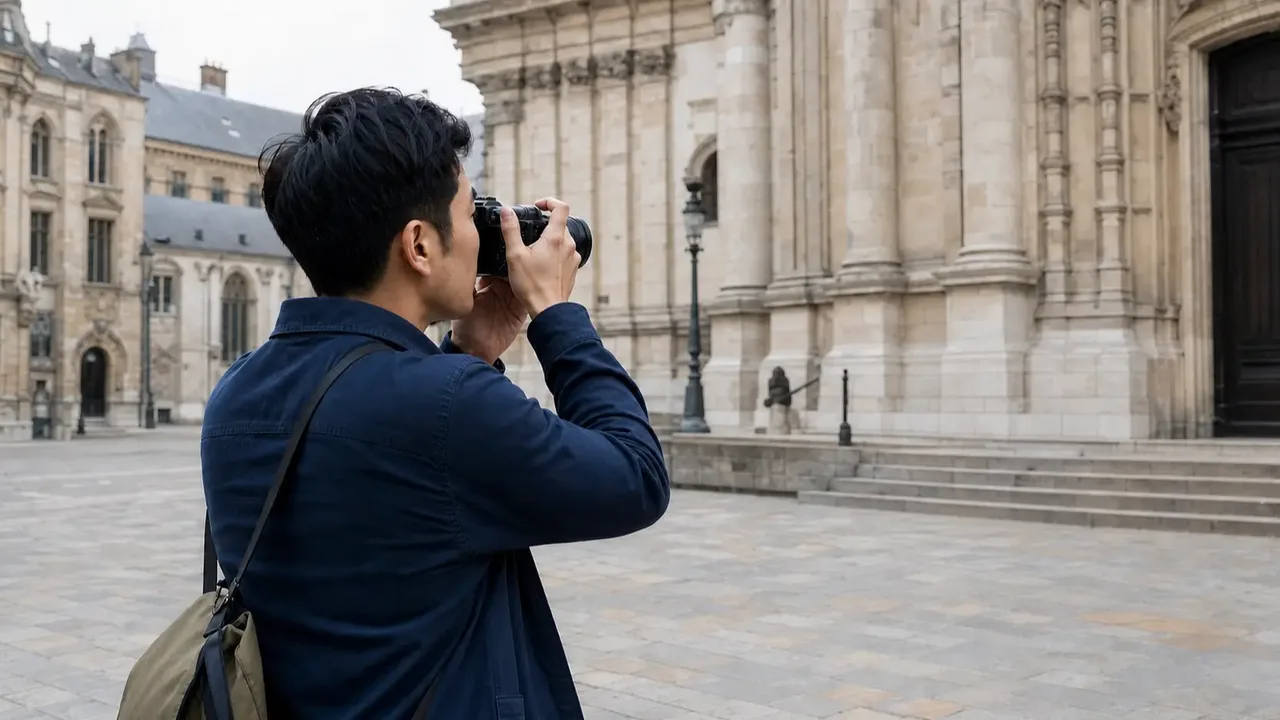
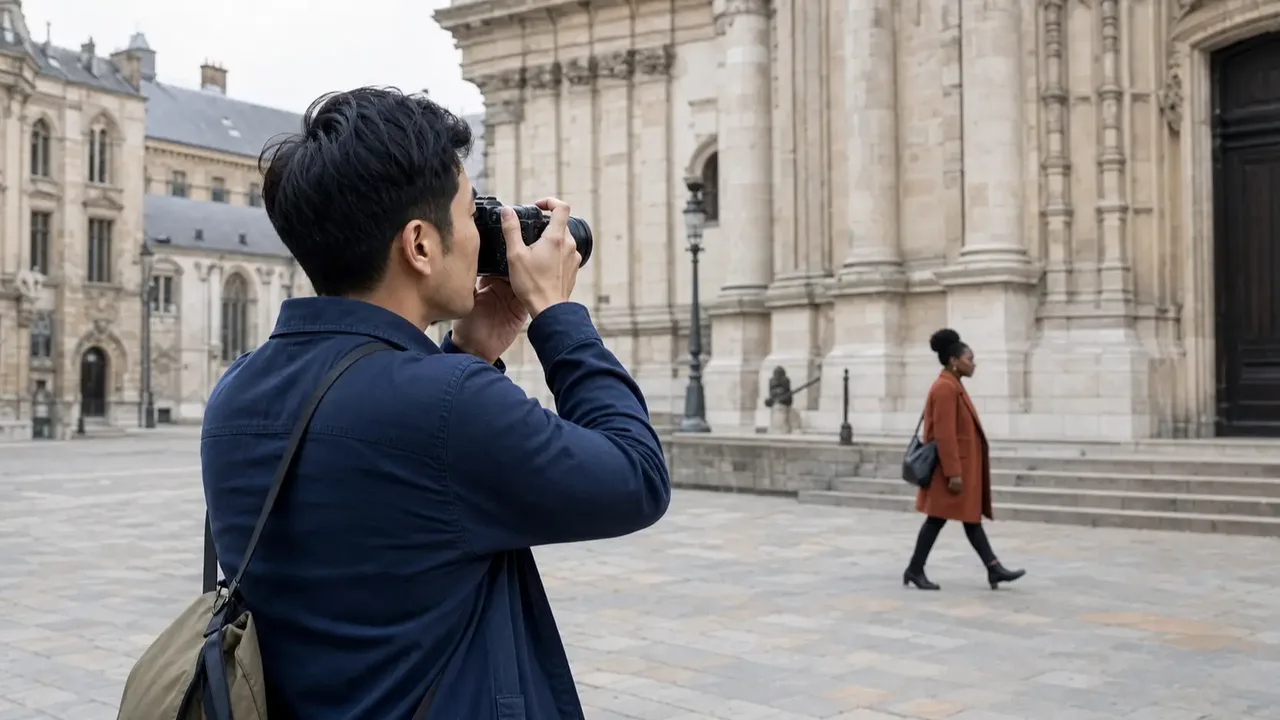
A person walks through the back of an otherwise framed shot. Taking them out keeps the square and the subject.
Free preview · Up to 2 trial runs per account
A useful product shot has a stray prop or background distraction? Mark the object in your own short clip and remove it before your next edit. Small objects against simple backgrounds are a better starting point.
Drop a video here or choose a file
The video plays in your browser. It is uploaded only when you press the remove button.
Choose a clip and set up the removal. Your video is uploaded only when you press the remove button.
More examples
Three scenes with one thing taken out: a passer-by, clutter on a table, and a cyclist. Drag the slider to compare each frame.
A person walks through the back of an otherwise framed shot. Taking them out keeps the square and the subject.
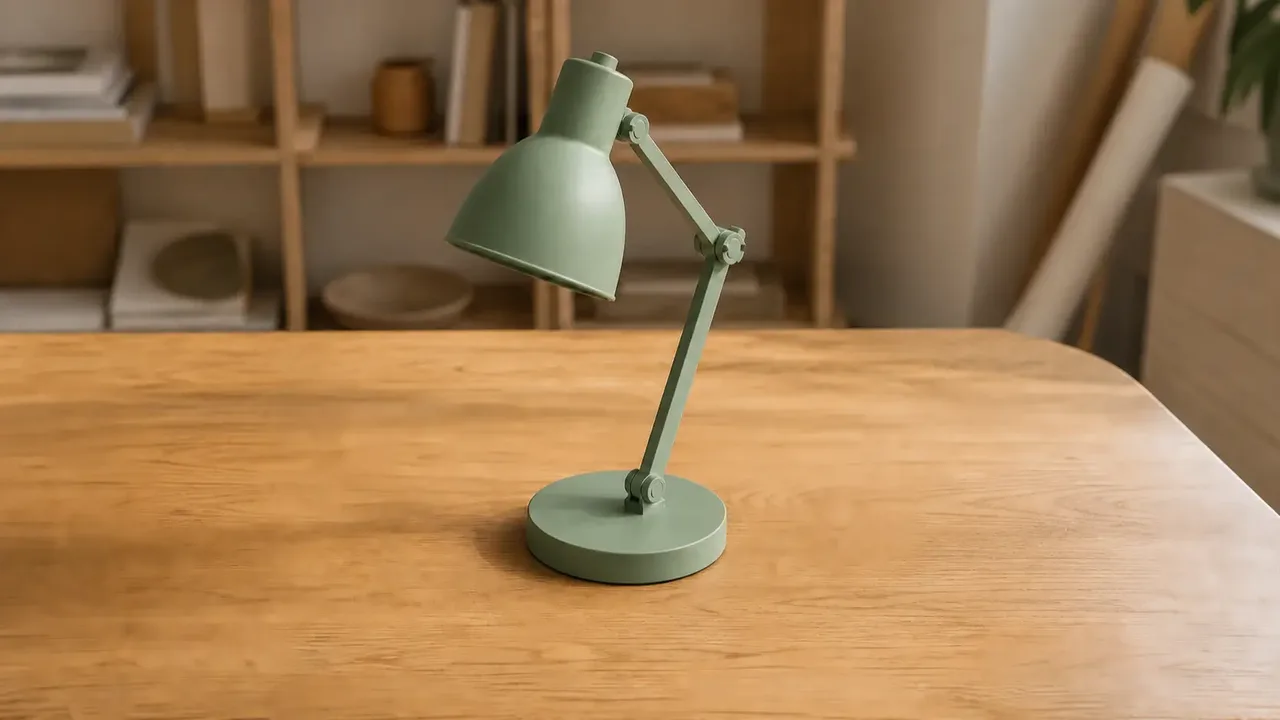
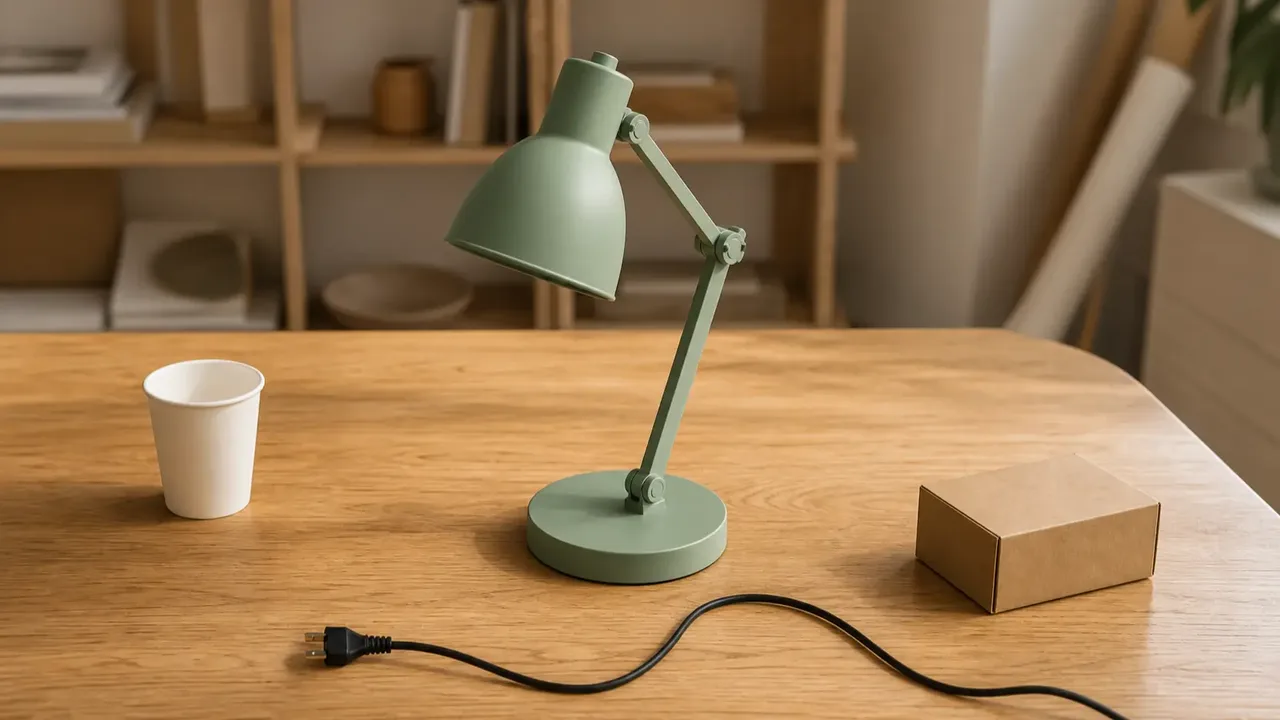
A cup, a box and a loose cable sit next to a lamp. Without them the product is the only thing on the desk.
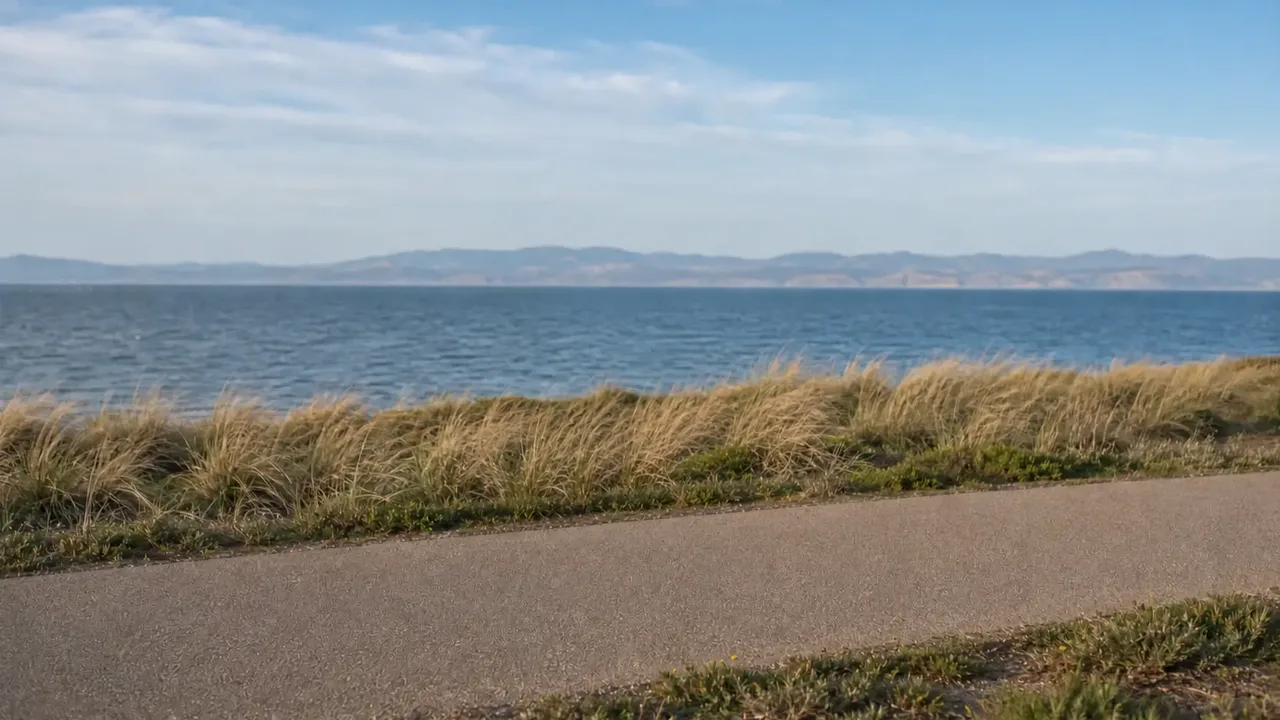
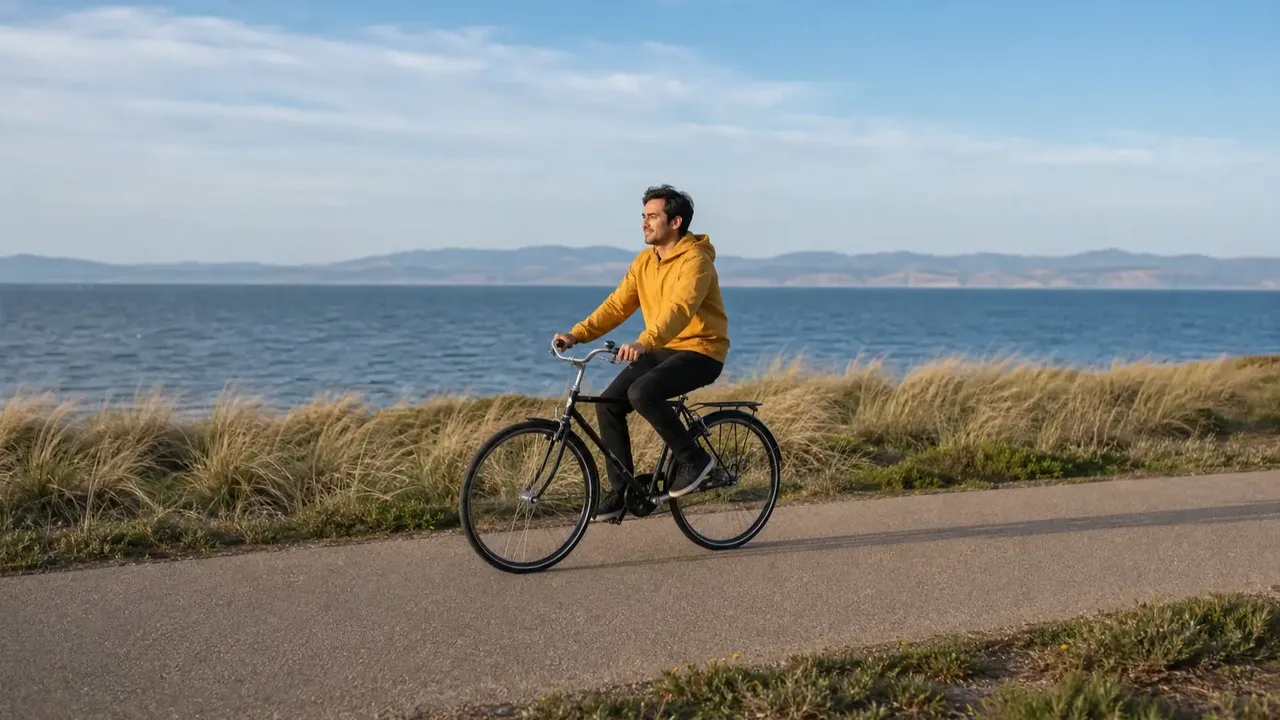
A cyclist rides along a coast path. Taking the rider out leaves an empty path and the sea behind it.
These sample images show typical before and after looks. They were not made with this site.
A video object remover fills the picture behind a marked distraction. Add up to three fixed areas, each with its own time range, then check the repaired shot in motion.

Video Object Remover takes a person or thing out of a video scene, such as a passer-by or clutter on a table, and rebuilds the background behind it.
Each box stays in one place during its selected time range. Use separate boxes for different positions, up to three; they do not follow a moving object.
Usually, yes. A person covers more of the frame and moves in more ways than a cup on a table, so there is more to rebuild behind them. One person walking through is far easier than a crowd.
Compared
There is no one best way. It depends on how big the object is, whether it moves, and how much time you have.
| Way to do it | What happens | Watch out for |
|---|---|---|
| Crop the frame | Makes the frame smaller so the object falls outside it. | Only works if the object is at the edge, and you lose picture. |
| Reshoot | Film the scene again without the object. | Cleanest, but impossible for footage you already have. |
| Patch it by hand in an editor | Paint over the object with nearby pixels, frame by frame. | Full control, but a few seconds can take hours, and flicker is common. |
| Mark it and let the tool rebuild the background (this site's tool) | You mark the object and the background behind it is filled in. | The box does not follow a moving object. Large or moving objects are harder. |
Crop the frame
What happens: Makes the frame smaller so the object falls outside it.
Watch out for: Only works if the object is at the edge, and you lose picture.
Reshoot
What happens: Film the scene again without the object.
Watch out for: Cleanest, but impossible for footage you already have.
Patch it by hand in an editor
What happens: Paint over the object with nearby pixels, frame by frame.
Watch out for: Full control, but a few seconds can take hours, and flicker is common.
Mark it and let the tool rebuild the background (this site's tool)
What happens: You mark the object and the background behind it is filled in.
Watch out for: The box does not follow a moving object. Large or moving objects are harder.
For ecommerce teams and editors who want to try reusing a shot before planning a reshoot. Start with an isolated object; complex backgrounds and moving subjects may leave visible repairs.
Choose a videoMark a stray prop near the product so you can check whether the existing shot is usable in the next listing or campaign.
Try removing a small sign or isolated object from your own short clip. A fixed box will not follow an object moving across the frame.
Check a repaired shot in motion before adding it to the client edit. Look for texture changes and flicker, especially near detailed surfaces.
How to use it
Choose a clip, set up the removal and check the processed result before downloading. Time ranges are applied in your browser; processing is still charged for the full uploaded clip.
Choose a clip for free, with no login needed. It plays on your device while you mark it; processing is a separate step.
Frame the distracting object closely. Add up to three boxes and set when each applies; fixed boxes do not follow moving objects.
Review the credit estimate before submitting. After processing, check the full result and download the version you want to keep.
Quality guide
Results depend on object size, background detail and motion. Play the whole clip before you use it.
A good place to start.
Plan to check these more closely.
Look closely at these spots.
More tools
Each tool has its own page. Open the one that matches what you want to remove.
 Remove logo from videoTake fixed logos, channel badges and watermarks out of a clip.
 Remove watermark from videoTake a watermark you are allowed to remove out of a clip.
 Remove background from videoCut out the background to leave a clear or plain one.
 Remove text from videoTake titles, subtitles and timestamps out of a clip.
FAQ
Choose a clip, box the object and press the remove button. The clip is processed and you can check the result before you download it.
Each box stays in one place during its selected time range. You can use up to three boxes for different positions, but they do not automatically track an object as it moves.
They are part of the picture, so include them in your box if you want them gone. They are often harder to repair.
The rest of the frame is meant to stay as shot, but results depend on the scene. Check the whole clip before you use it.
Choosing and previewing a clip is free. Each account can use up to two trial runs, each for a clip of up to 15 seconds, shared across the server-processed video removal tools, subject to human verification and device, network and site limits. Paid runs use credits; review the estimate before submitting.
No install is needed. You mark the area in your browser, and you sign in to process a clip so the task and any credit charge stay in your account.
Your video stays on your device during preview. It is uploaded only when you submit a removal task.
Only edit videos you own or have permission to change.
Only edit videos you own or have permission to change.
Choose your short clip and mark the distracting object. Review the credit estimate, then check the full processed result before using it.
Choose a video