

Transparent
Cut out on a see-through background
The person is cut out and the background is empty, shown here as a checkerboard.
Good for: Placing the person over another clip, a slide or a product shot in an editor that reads transparency.
Free preview · Up to 2 trial runs per account
Keep a useful presenter take when the room behind them no longer fits. Remove the background from your own short clip and choose transparent, plain-color or green-screen output for your next edit.
Drop a video here or choose a file
The video plays in your browser. It is uploaded only when you press the remove button.


Choose a clip and set up the removal. Your video is uploaded only when you press the remove button.
More examples
What you do next decides the format. Here is one person cut out three ways: with a see-through background, a plain color, and a green screen.
The person is cut out and the background is empty, shown here as a checkerboard.
Good for: Placing the person over another clip, a slide or a product shot in an editor that reads transparency.

The background becomes one flat color. It keeps attention on the speaker.
Good for: Training clips, explainers and ads where the background should not compete with the speaker.
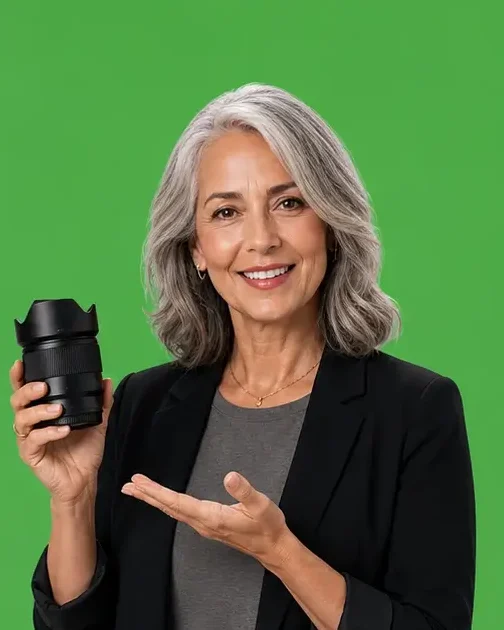
The background becomes a flat green. Many editors can key green out again and place any scene behind the person.
Good for: Editors that do not read transparency but have a green-screen key.
Hair, glasses and fast motion are the hardest edges in a cutout. Check them on your own clip before you rely on the result.
These sample images show typical before and after looks. They were not made with this site.
Video Background Remover cuts a person or main subject out of a video and replaces the background with transparency, a plain color or a green screen.
It depends on where the clip goes next. Pick transparent if your editor reads transparency. Pick a plain color if the clip stays on its own. Pick green if your editor has a green-screen key but cannot read transparency.
Choose a transparent or green output, then place the new scene behind the person in your editor.
A video background remover is made to keep the person or main subject in a clip and replace everything behind them. You choose what goes there: a clear background, a plain color or a green screen.

How to use it
Choose a clip, set up the removal and check the processed result before downloading. Time ranges are applied in your browser; processing is still charged for the full uploaded clip.
Choose a clip for free, with no login needed. It plays on your device while you mark it; processing is a separate step.
Choose a clear, plain or green background. For a plain color, pick the color you want.
Review the credit estimate before submitting. After processing, check the full result and download the version you want to keep.
Quality guide
Results depend on how the subject is lit, how it moves and what is behind it. Play the whole clip before you use it.
A good place to start.
Plan to check these more closely.
Look closely at these spots.
Compared
Cutting a person out of a video can be done before, during or after filming. Each way trades time against control.
| Way to do it | What happens | Watch out for |
|---|---|---|
| Film on a green screen | You shoot in front of green and key it out later. | Needs a set and even lighting, and cannot help footage you already have. |
| Trace the person in an editor | You outline the person frame by frame. | Precise, but very slow. |
| Blur the background | Keeps the room but softens it. | This is not removal; the room is still there. |
| Let the tool cut the person out (this site's tool) | The person is found and the rest becomes transparent, a plain color or green. | Hair, glasses and fast motion are the hardest edges. |
Film on a green screen
What happens: You shoot in front of green and key it out later.
Watch out for: Needs a set and even lighting, and cannot help footage you already have.
Trace the person in an editor
What happens: You outline the person frame by frame.
Watch out for: Precise, but very slow.
Blur the background
What happens: Keeps the room but softens it.
Watch out for: This is not removal; the room is still there.
Let the tool cut the person out (this site's tool)
What happens: The person is found and the rest becomes transparent, a plain color or green.
Watch out for: Hair, glasses and fast motion are the hardest edges.
For trainers, creators and marketing teams who need the same speaker in a different layout. Choose a plain background here, or use transparent or green-screen output to composite a new scene in your editor.
Choose a videoKeep your delivery and remove the room, then place the speaker in your next video layout in an editor.
Separate a presenter from a busy room so your editor can combine the clip with updated product graphics.
Prepare a speaker clip for a new lesson layout. Use a segment up to 60 seconds and 50 MB, and check hair and hand edges before reuse.
More tools
Each tool has its own page. Open the one that matches what you want to remove.
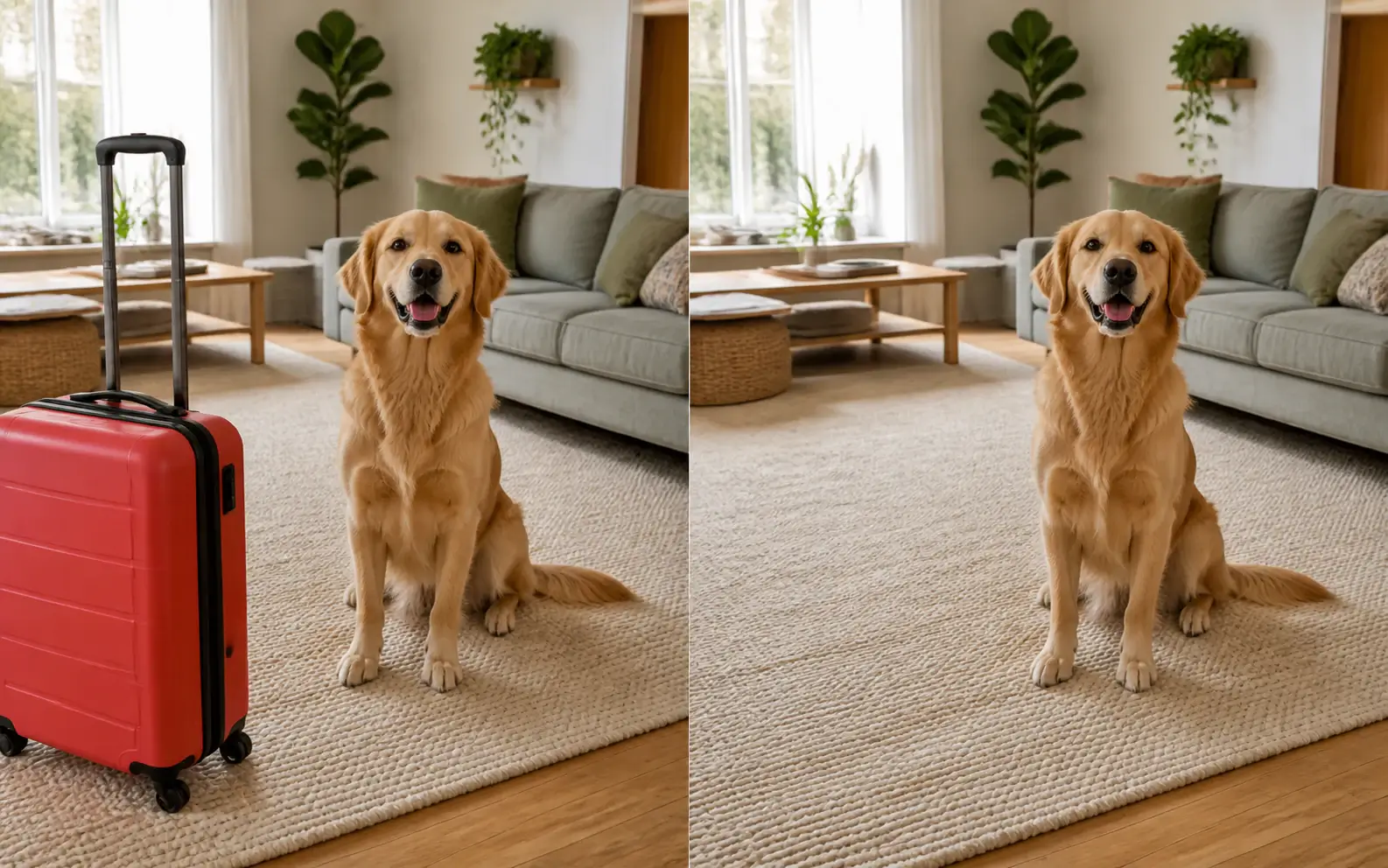 Remove object from videoTake people, props and other distractions out of a scene.
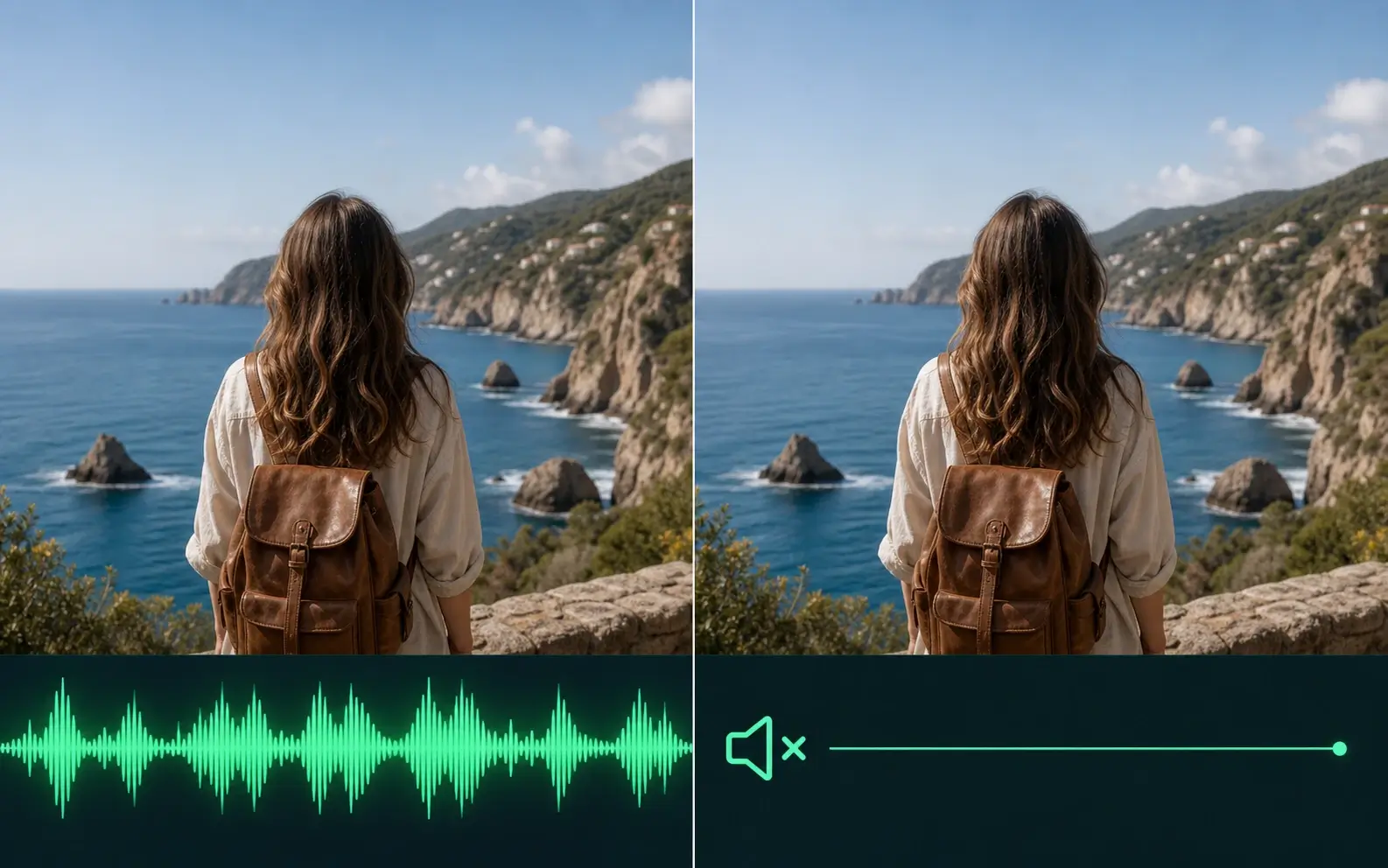 Remove audio from videoRemove all audio tracks and download a silent copy in your browser.
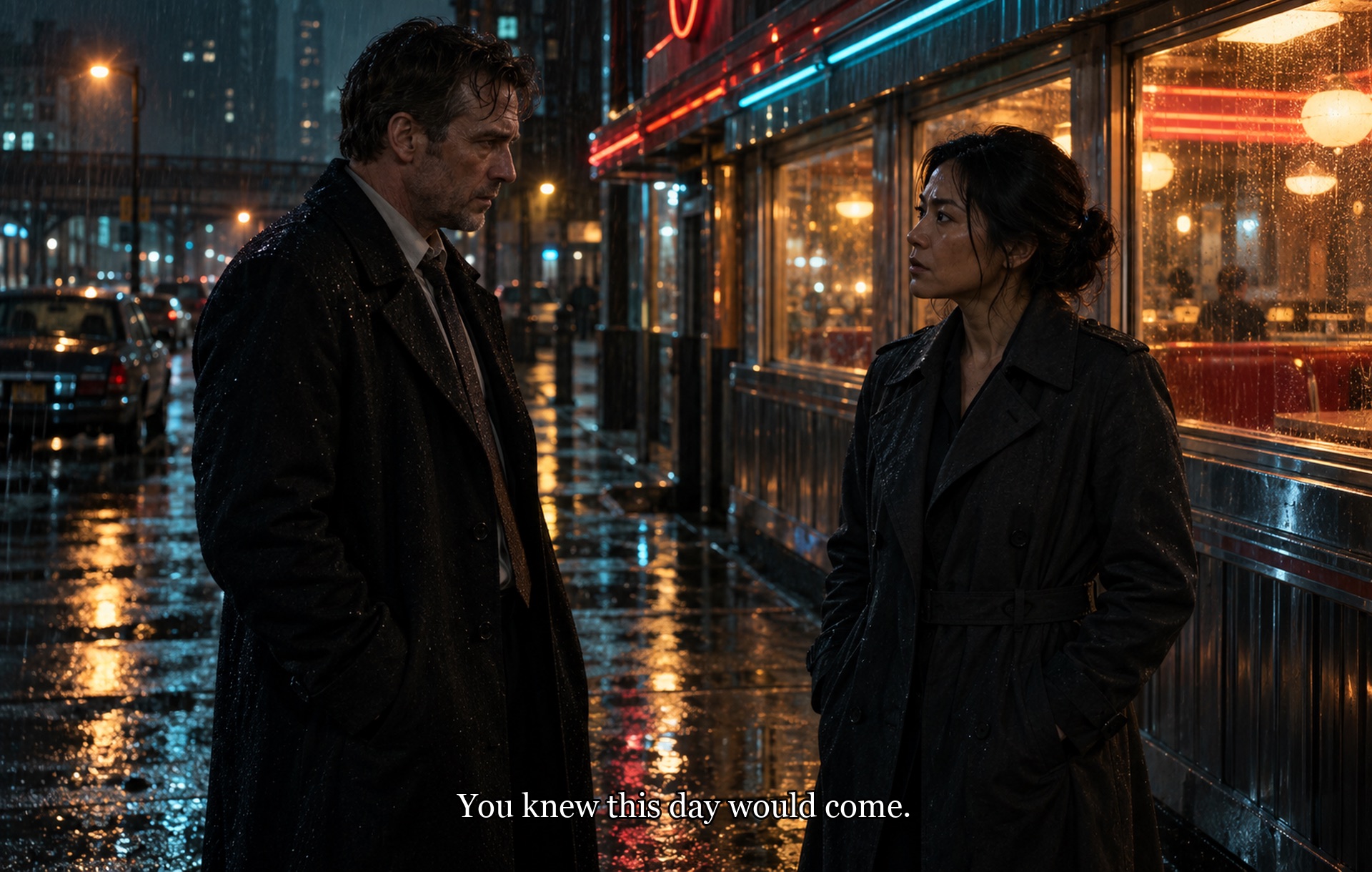 Remove text from videoTake titles, subtitles and timestamps out of a clip.
 Remove logo from videoTake fixed logos, channel badges and watermarks out of a clip.
FAQ
Choose a clip, pick the output you want (transparent, a plain color or a green screen) and press the remove button. The clip is processed and you can check the result before you download it.
No green screen is needed to use this page. One can make it easier to separate the subject, so results may be cleaner with one.
A clear background keeps only the subject. A plain color fills the background with one color. A green screen fills it with green, so you can swap it later in an editor. Not every player shows transparency, so check a clear result in your editor.
Check the sound in the result before you use it.
Choosing and previewing a clip is free. Each account can use up to two trial runs, each for a clip of up to 15 seconds, shared across the server-processed video removal tools, subject to human verification and device, network and site limits. Paid runs use credits; review the estimate before submitting.
No install is needed. You choose the output in your browser, and you sign in to process a clip so the task and any credit charge stay in your account.
Your video stays on your device during preview. It is uploaded only when you submit a removal task.
Only edit videos you own or have permission to change.
Only edit videos you own or have permission to change.
Choose your short video and its output background. Add any replacement scene or branded layout in your editor after downloading.
Choose a video