
 Picture stays the same
Voice-over
Clear an old voice-over
A training clip is going to get a new voice-over. The old voice and the background music both go, and the picture stays.
Original sound
Voice
Music
After
No sound
Free local export · No login or upload
Sharing a recording with private conversation, or preparing a clip for new music? Remove every audio track and download a silent copy. Processing stays in your browser, with no login, upload or credits.
Drop a video here or choose a file
Choose a video to preview it in your browser. Selecting a file does not upload it.

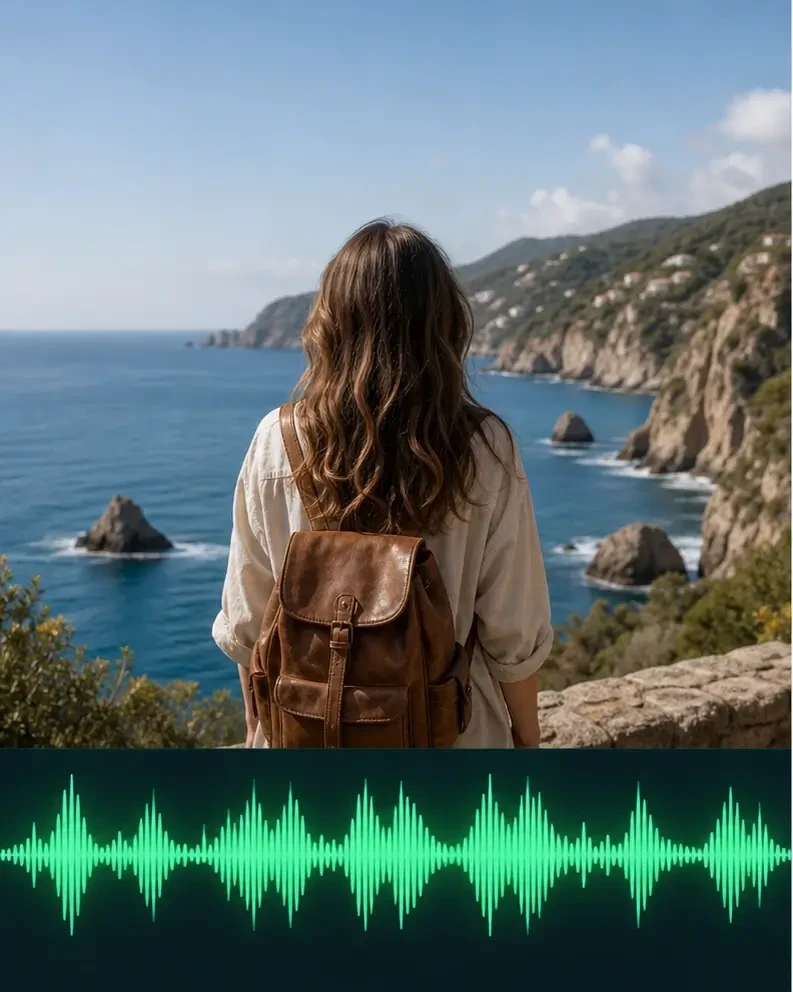
Choose a clip, preview its sound and press Remove audio to create a silent file. Your video stays in your browser.
More examples
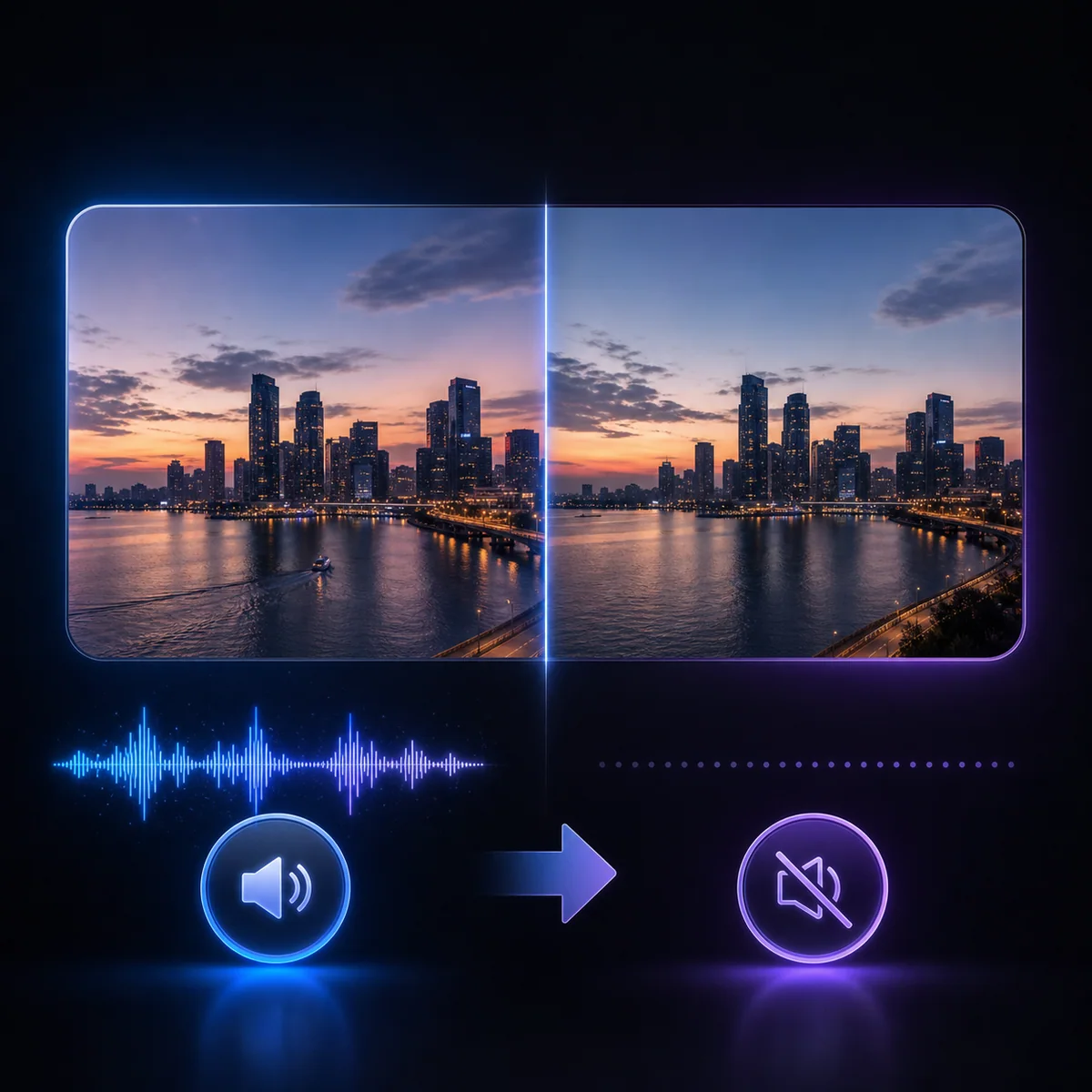
Removing audio takes out voice, music and other sound tracks together. These illustrations show what stays in the picture and what is removed from the file.
Picture stays the sameA training clip is going to get a new voice-over. The old voice and the background music both go, and the picture stays.
Original sound
After
 Picture stays the same
A scenic clip has a music track you cannot reuse. Without it you can add your own music in an editor.
Original sound
After
 Picture stays the same
A product clip is going to loop on a page, where sound would only get in the way.
Original sound
After
The waveforms are drawn for illustration. They are not measured from the clips.
A video audio remover creates a copy without audio tracks. This tool copies the encoded video into a new file without re-encoding the picture and leaves out every audio track. The original file is unchanged.
Quality guide
Video packets are copied without re-encoding. The new file has no audio tracks. Check playback and download your copy before leaving the page; local exports are not saved to account task history.
A good place to start.
Plan to check these more closely.
Look closely at these spots.
Video Audio Remover creates a new file without audio tracks by copying the original video data in your browser. It removes all sound tracks and preserves the original file.
The preview switch only mutes playback. Remove audio exports a separate file with no audio tracks, so turning the player volume up cannot restore the removed sound.
No. This tool removes every audio track. Separating voice and music requires a different tool.
How to use it
Choose a clip, set up the removal and check the processed result before downloading. Time ranges are applied in your browser; processing is still charged for the full uploaded clip.
Choose a compatible MP4, MOV or WebM video up to 200 MB. Your file stays on your device.
Preview with sound on or off if needed, then press Remove audio. The export excludes all audio tracks regardless of the preview switch.
Check the processed preview, then download the new file. MP4 and compatible MOV inputs export as MP4; WebM inputs export as WebM.
Compared
These sound alike but give different files. Only some of them leave you with a clip that has no sound in it.
| Option | What happens | Is the sound still in the file? |
|---|---|---|
| Mute in the player | Silences playback on your device only. | Yes. Anyone who plays the file will hear it. |
| Lower the volume | Makes the sound quieter, not gone. | Yes. |
| Mute or delete the track in an editor | Exports a new file with the track muted or removed. | The track may remain as silence or be removed, depending on the export settings. |
| Separate the voice and the music | Splits a sound track into parts. | Parts remain. This is a different job and not what this page does. |
| Remove audio with this site's tool | Downloads a new video file with all audio tracks omitted, without re-encoding the picture. | No. The exported copy contains no audio tracks. |
Mute in the player
What happens: Silences playback on your device only.
Is the sound still in the file?: Yes. Anyone who plays the file will hear it.
Lower the volume
What happens: Makes the sound quieter, not gone.
Is the sound still in the file?: Yes.
Mute or delete the track in an editor
What happens: Exports a new file with the track muted or removed.
Is the sound still in the file?: The track may remain as silence or be removed, depending on the export settings.
Separate the voice and the music
What happens: Splits a sound track into parts.
Is the sound still in the file?: Parts remain. This is a different job and not what this page does.
Remove audio with this site's tool
What happens: Downloads a new video file with all audio tracks omitted, without re-encoding the picture.
Is the sound still in the file?: No. The exported copy contains no audio tracks.
For people sharing recordings and editors preparing a new soundtrack. All audio is removed together, including speech and music. Download the silent file, then add replacement sound in your editor.
Choose a videoReuse the picture with new music or a voice-over. This tool removes the old audio; it does not record or add the replacement.
Remove all recorded sound before sharing a demo. Also check the picture for private information; audio removal only changes the audio tracks.
Create a silent copy for a product page or another edit. Compatible video is copied without re-encoding; this tool does not create the loop itself.
More tools
Each tool has its own page. Open the one that matches what you want to remove.
 Remove background from videoCut out the background to leave a clear or plain one.
 Remove text from videoTake titles, subtitles and timestamps out of a clip.
 Remove logo from videoTake fixed logos, channel badges and watermarks out of a clip.
 Remove object from videoTake people, props and other distractions out of a scene.
FAQ
Choose an MP4, MOV or WebM video, then press Remove audio. When export finishes, preview and download the silent copy. The original file is unchanged.
The preview switch only mutes playback. The Remove audio button creates a new video file without any audio tracks. It does not extract or save a separate audio file.
Every audio track is omitted, including alternate languages, voice and music. This tool does not separate voice from background music or preserve selected audio tracks.
The video data is copied without re-encoding, including its orientation metadata. MP4 and compatible MOV inputs export as MP4; WebM stays WebM. Unsupported video codecs show an error instead of a partial export.
Yes. Audio removal and download are free. No account credits or trial runs are used. Compatible files up to 200 MB are processed locally.
No login or installation is needed. The video is processed on your device and is not uploaded. Download the result before closing the page; it is not stored in account task history.
No login or installation is needed. The video is processed on your device and is not uploaded. Download the result before closing the page; it is not stored in account task history.
Only edit videos you own or have permission to change.
Only edit videos you own or have permission to change.
Choose a compatible MP4, MOV or WebM video up to 200 MB. Remove all audio locally and download for free; your original file is unchanged.
Choose a video